
Action Bar
Action Bars contain primary and secondary actions related to a page or task.
Anatomy
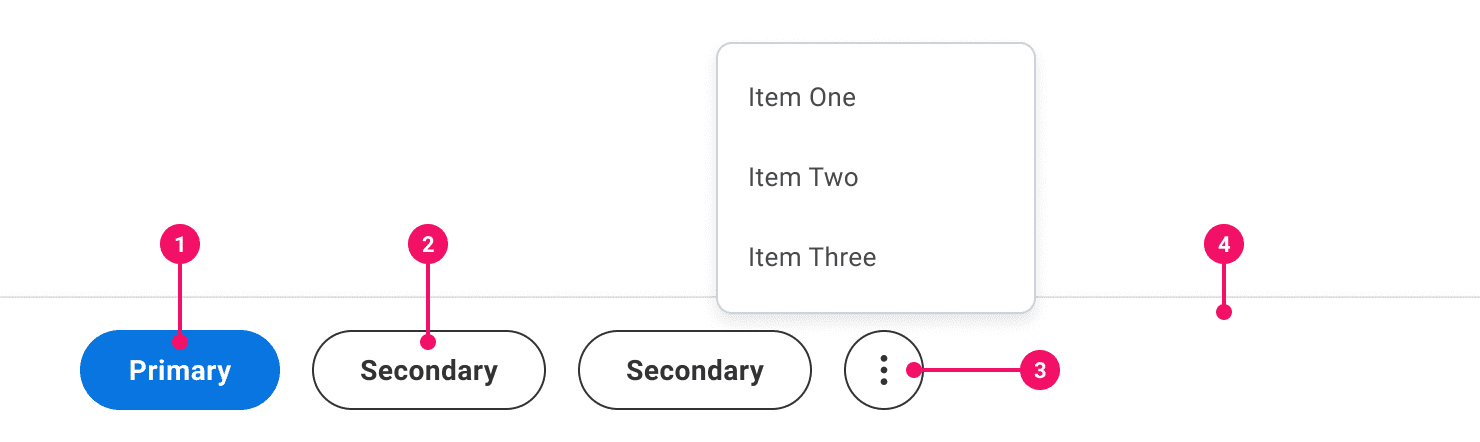
- Primary Button: A button that is discoverable and used as the most important action to take on a page.
- Secondary Button: A button or set of buttons that is less important than the Primary Button.
- Overflow Menu: An Icon-Only Secondary Button Variant with an Ellipsis Icon used for responsive screens or small page width to show more actions.
- Container Bar: The Container Bar is used to house action buttons and is anchored at the bottom of the screen.
Usage Guidance
- Primary Buttons should only be used once per screen. If there are other buttons on screen, use the Secondary or Tertiary Buttons. However, Tertiary Buttons should not be on the Action Bar unless it's in the Overflow Menu.
- Action Bars are placed at the bottom of the screen, and will stick as the user scrolls.
- Although actions may change, the placement of the Action Bar should persist until the task is successfully submitted.
- Action Bars can contain up to 3 actions and an Overflow Menu when appropriate.
- If there are more than 3 actions, hide the 4th and other remaining actions in an Overflow Menu that is launched by clicking the Icon Only Secondary Button Variant.
- There should be between 1-7 items to choose from in an Overflow Menu.
- Buttons placed in Action Bars should be grouped logically, either by usage or importance.
When to Use
- Use Action Bars for tasks that require navigating between pages, saving progress, submitting a task, or cancelling a task.
When to Use Something Else
- Consider taking a Button outside of the Action Bar if the action is not related to the progress or status of a task.
- Consider using a Text Button instead of an Action Bar if an action is less popular or less important.
Examples
Basic Example
ActionBar includes a container ActionBar component and the following subcomponent:
ActionBar.List which should contains ActionBar.Item.
In a basic example of an ActionBar there are two buttons. The primary action button should be used
only once and left aligned if content is left to right, followed by secondary buttons. Tertiary
buttons should not be used in the Action Bar.
Icons Example
ActionBar.Item renders a SecondaryButton as default, so it's possible to use other Button props
with ActionBar.Item such as icon or size.
Delete Action Example
ActionBar.Item is a SecondaryButton by default but it's posible to change it to another element,
such as DeleteButton, by using as prop.
Overflow Example
ActionBar container can contain up to 3 actions and an Overflow Menu if there are more than 3
actions, the other remaining actions should be placed into an Overflow Menu that is launched by
clicking the Overflow Button.
Also, ActionBar is a responsive component based on the width of its container. If the rendered
actions exceed the width of the ActionBar.List, an overflow menu will be rendered. This only works
against the dynamic API where you give the ActionBarModel an array of items to be rendered. The
dynamic API handles the React key for you based on the item's identifier. The dynamic API requires
either an id on each item object or a getId function that returns an identifier based on the
item. The below example uses an id property on each item.
The dynamic API takes in any object, but since nothing is known about your object, a render prop is necessary to instruct a list how it should render.
Change Action Bar container size
The number of visible buttons can also be adjusted by using the model's maximumVisible attribute.
You can change it from the default of 3 to any number greater than 1 and less than items.length.
Component API
ActionBar
ActionBar is a container component that is responsible for creating an and sharing it with its subcomponents using React context. It does not represent a real element.
<ActionBar items={[]}>{Child components}</ActionBar>
Alternatively, you may pass in a model using the hoisted model pattern.
const model = useActionBarModel({items: [],});<ActionBar model={model}>{Child components}</ActionBar>;
Props
Props extend from . If a model is passed, props from ActionBarModelConfig are ignored.
| Name | Type | Description | Default |
|---|---|---|---|
children | ReactNode | The contents of the ActionBar. Can be | |
model | | Optional model to pass to the component. This will override the default model created for the component. This can be useful if you want to access to the state and events of the model, or if you have nested components of the same type and you need to override the model provided by React Context. | |
elemPropsHook | ( | Optional hook that receives the model and all props to be applied to the element. If you use this, it is your responsibility to return props, merging as appropriate. For example, returning an empty object will disable all elemProps hooks associated with this component. This allows finer control over a component without creating a new one. |
ActionBar.List
ActionBar.List is a element. It is a container for
subcomponents. To render an overflow button for
ActionBar with overflow behavior overflowButton prop with overflow button component as a
value should be passed.
// without overflow<ActionBar.List>{ActionBar.Items}</ActionBar.List>// with overflow<ActionBar.List overflowButton={<ActionBar.OverflowButton aria-label="More actions"/>}>{ActionBar.Items}</ActionBar.List>
Layout Component
ActionBar.List supports all props from thelayout component.
Props
Props extend from div. Changing the as prop will change the element interface.
| Name | Type | Description | Default |
|---|---|---|---|
children | (( | If items are passed to a | |
overflowButton | ReactNode |
| |
as | React.ElementType | Optional override of the default element used by the component. Any valid tag or Component. If you provided a Component, this component should forward the ref using Note: Not all elements make sense and some elements may cause accessibility issues. Change this value with care. | div |
ref | React.Ref<R = div> | Optional ref. If the component represents an element, this ref will be a reference to the real DOM element of the component. If | |
model | | Optional model to pass to the component. This will override the default model created for the component. This can be useful if you want to access to the state and events of the model, or if you have nested components of the same type and you need to override the model provided by React Context. | |
elemPropsHook | ( | Optional hook that receives the model and all props to be applied to the element. If you use this, it is your responsibility to return props, merging as appropriate. For example, returning an empty object will disable all elemProps hooks associated with this component. This allows finer control over a component without creating a new one. |
useOverflowListMeasure
This elemProps hook measures a list and reports it to an OverflowListModel. This is used in
overflow detection.
(
model: ,
elemProps: {},
ref: React.Ref
) => {
ref: (instance: | null) => void;
}ActionBar.Item
ActionBar.Item is a button element, by default it's a SecondaryButton unless an as
prop is passed.
<ActionBar.Item as={PrimaryButton} onClick={() => console.log('first action')}>First Action</ActionBar.Item>
Props
Props extend from . Changing the as prop will change the element interface.
| Name | Type | Description | Default |
|---|---|---|---|
children | ReactNode | The contents of the action item. This will be the accessible name of the action for screen readers.
| |
data-id | string | The identifier of the action. This identifier will be used for correct overflow behavior. If this property is not provided, it will default to a string representation of the the zero-based index of the Item when it was initialized. | |
as | React.ElementType | Optional override of the default element used by the component. Any valid tag or Component. If you provided a Component, this component should forward the ref using Note: Not all elements make sense and some elements may cause accessibility issues. Change this value with care. | |
ref | React.Ref<R = > | Optional ref. If the component represents an element, this ref will be a reference to the real DOM element of the component. If | |
model | | Optional model to pass to the component. This will override the default model created for the component. This can be useful if you want to access to the state and events of the model, or if you have nested components of the same type and you need to override the model provided by React Context. | |
elemPropsHook | ( | Optional hook that receives the model and all props to be applied to the element. If you use this, it is your responsibility to return props, merging as appropriate. For example, returning an empty object will disable all elemProps hooks associated with this component. This allows finer control over a component without creating a new one. |
ActionBar.OverflowButton
Layout Component
ActionBar.OverflowButton supports all props from thelayout component.
Props
Props extend from button. Changing the as prop will change the element interface.
| Name | Type | Description | Default |
|---|---|---|---|
aria-label | string | ||
variant | 'inverse' | undefined | The variant of the SecondaryButton. | |
size | | There are four button sizes: | 'medium' |
icon | | The icon of the Button.
Note: not displayed at | |
iconPosition | | Button icon positions can either be | 'start' |
shouldMirrorIcon | boolean | If set to | false |
children | ReactNode | ||
theme | | ||
grow | boolean | True if the component should grow to its container's width. False otherwise. | |
fill | | The fill color of the SystemIcon. This overrides | |
color | | The color of the SystemIcon. This defines | |
styles | | ||
shouldMirror | boolean | If set to | false |
background | | The background color of the SystemIcon. | |
accent | | The accent color of the SystemIcon. This overrides | |
accentHover | | The accent color of the SystemIcon on hover. This overrides | |
backgroundHover | | The background color of the SystemIcon on hover. | |
colorHover | | The hover color of the SystemIcon. This defines | |
fillHover | | The fill color of the SystemIcon on hover. This overrides | |
colors | | Override default colors of a button. The default will depend on the button type | |
fillIcon | boolean | Whether the icon should received filled (colored background layer) or regular styles.
Corresponds to | |
as | React.ElementType | Optional override of the default element used by the component. Any valid tag or Component. If you provided a Component, this component should forward the ref using Note: Not all elements make sense and some elements may cause accessibility issues. Change this value with care. | button |
ref | React.Ref<R = button> | Optional ref. If the component represents an element, this ref will be a reference to the real DOM element of the component. If | |
model | | Optional model to pass to the component. This will override the default model created for the component. This can be useful if you want to access to the state and events of the model, or if you have nested components of the same type and you need to override the model provided by React Context. | |
elemPropsHook | ( | Optional hook that receives the model and all props to be applied to the element. If you use this, it is your responsibility to return props, merging as appropriate. For example, returning an empty object will disable all elemProps hooks associated with this component. This allows finer control over a component without creating a new one. |
useActionBarOverflowButton
(
(
model: ,
elemProps: {},
ref: React.Ref
) => {
aria-haspopup: boolean;
},
,
(
(model: ) => ,
)
)ActionBar.Menu
Basic type information:
MenuModel
Accessibility Guidelines
Keyboard Interaction
Each Button in the Action Bar must have a focus indicator that is highly visible against the background and against the non-focused state. Refer to Accessible Colors for more information.
Action Bar must support the following keyboard interactions:
Tab: focus each Button element in the Action BarEnterorSpace: activate focused Button elementEsc: dismiss overflow menu of the action bar (if applicable)- [With overflow]
Up ArroworDown Arrow: navigates among the overflow menu items
Screen Reader Interaction
Action Bar must communicate the following to users:
- The accessible name for each button in the action bar
- The “more actions” icon button has an attached menu or “popup” (if applicable)
- Total number of menu items in the overflow menu (if applicable)
Design Annotations Needed
No design annotations are needed for Action Bar
Implementation Markup Needed
- An
aria-labelstring is required for the overflow icon-only Button variants and accessible tooltips can show the icon's name for everyone. - Action Bar can be rendered as a
<section>element with anaria-labelstring to enable a landmark region for screen reader users. - [Included in component] The overflow icon-only Button variants require an
aria-haspopup=”true”andaria-expandedattribute for the attached menu. - [Included in component] The menu container must have an ARIA
role=“menu”attribute. - [Included in component] All child elements inside the menu container must have an ARIA
role=“menuitem”attribute.
Content Guidelines
- When naming buttons within an Action Bar, refer to the Buttons and Calls to Action section of the Content Style Guide.
Anatomy
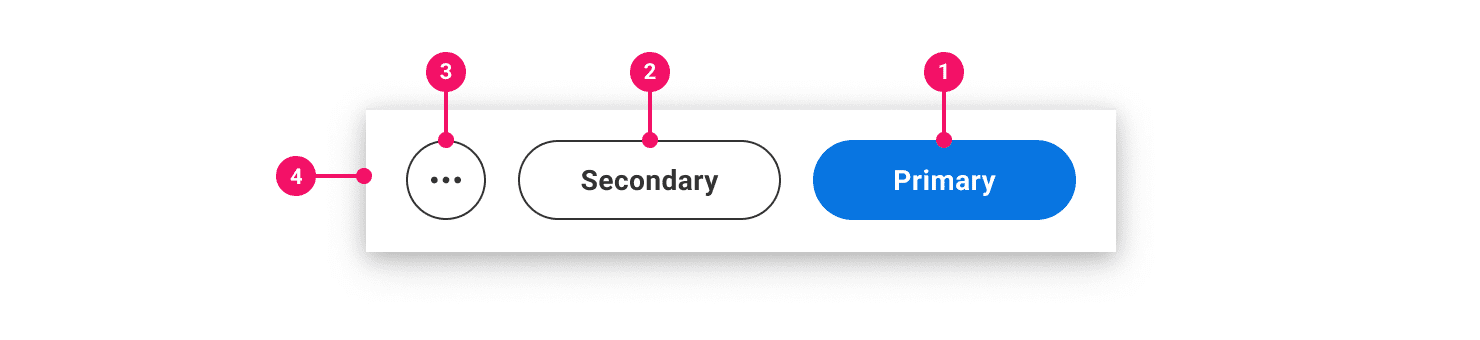
- Primary Button: Used as the most important action on a page or task.
- Secondary Button: Actions that are less important than Primary Buttons.
- Overflow Button: A Secondary Icon-Only Button that opens an Overflow Menu.
- Bar Container: Container that groups buttons, anchored to the bottom of the screen.
Variations
Mobile
Mobile action bars can contain up to one Primary Button and one Secondary Button, with additional actions placed in an Overflow Menu.
Overflow
In the case of more than two calls to action in the bar, any overflowing actions should be placed in the Overflow Menu. Tapping on the Overflow Button will open a Menu with those Secondary or Tertiary Actions.
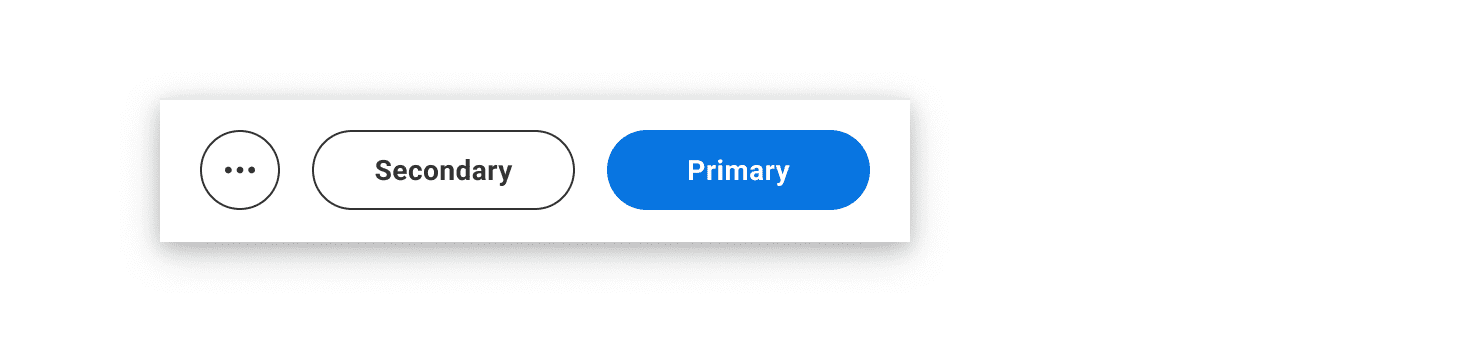
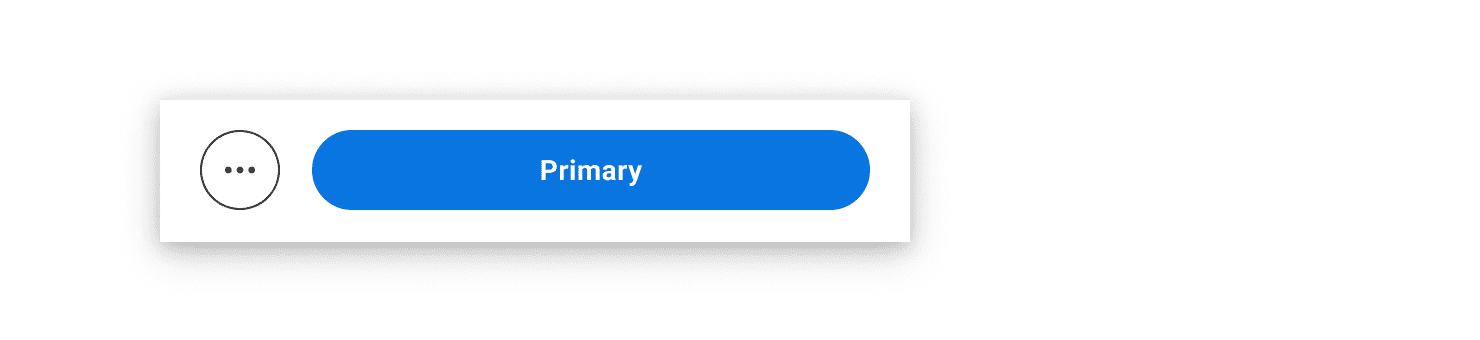
If the text within the Primary Button is too long to fit, the Secondary or Tertiary button(s) should move into the Overflow Menu to allow room for a full-width Primary Button.
Tablet
Action Bars on tablets may include up to one Primary and two Secondary Buttons.
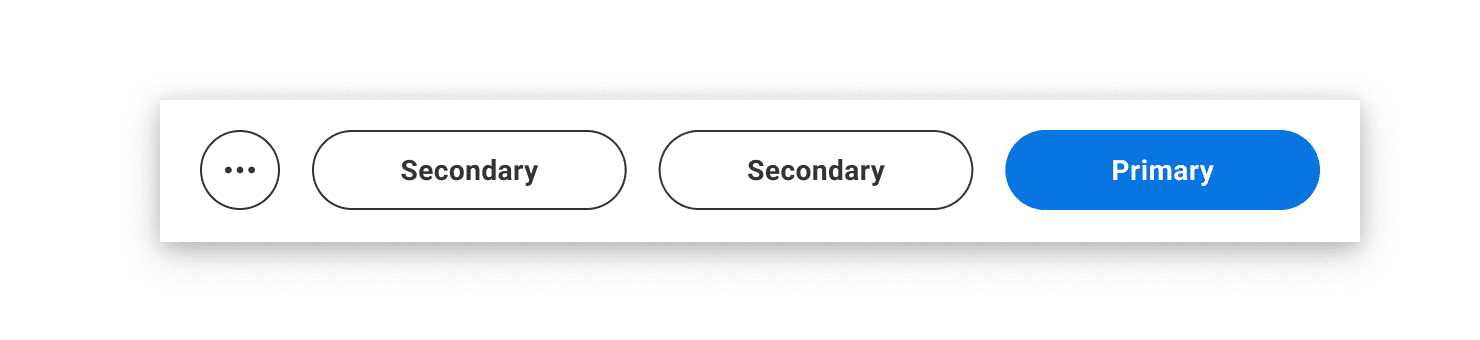
Overflow
In the case of more than two calls to action in the bar, all overflowing actions should be placed in the Overflow Menu. Tapping on the Overflow Button will open a Menu containing those Secondary or Tertiary Actions.
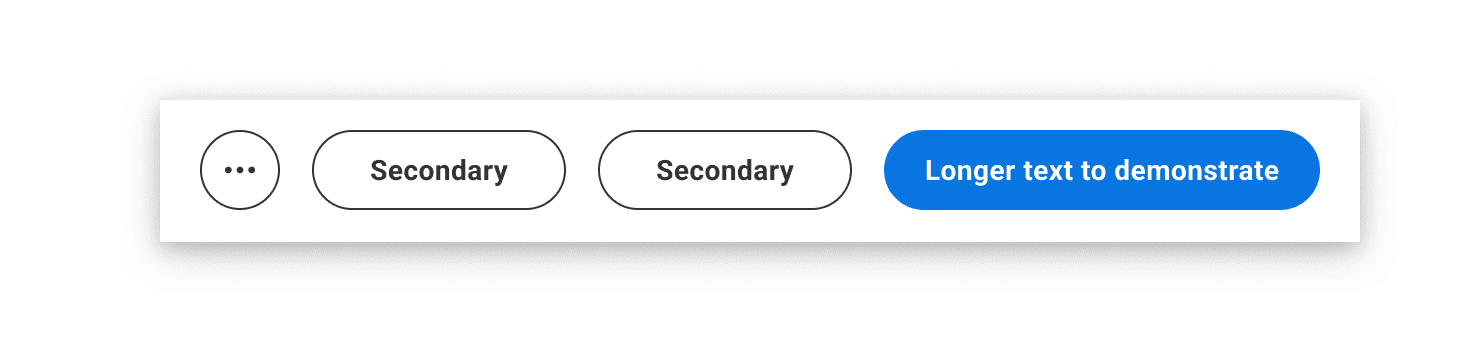
If the Primary Button length is too long to fit the Secondary Button beside it, the Secondary Button should be placed in the Overflow Menu.
Usage Guidance
- There should only be one Primary Button in the Action Bar. If there are additional actions, use Secondary Buttons. Tertiary Buttons should only appear as actions in the Overflow Menu.
- Action Bars are placed at the bottom of the screen. If there is scrollable content, the Action Bar should remain sticky as the user scrolls.
- Although actions may change, the placement of the Action Bar should persist until the task is successfully submitted.
- Mobile Action Bars can contain up to two visible actions. If there are more than two actions, hide the third and any other actions in an Overflow Menu that is launched by tapping on the Icon Only Secondary Button Variant.
- Tablet Action Bars can contain up to three visible actions. If there are more than three actions, hide the fourth and any other actions in an Overflow Menu that is launched by tapping on the Icon Only Secondary Button Variant.
- Limit the Overflow Menu to a maximum of seven items.
- Group buttons in Action Bars logically, either by usage or ordered by importance.
When to Use
- Use Action Bars for tasks that require navigating between pages, saving progress, submitting a task, or canceling a task.
When to Use Something Else
- Consider taking a Button outside of the Action Bar if the action is not related to the progress or status of a task.
- Consider using a Tertiary Button instead of an Action Bar if an action is less popular or less important.
- If actions are not related to a full screen task, consider using a group of buttons instead.
Mobile Guidance
Button Placement
Mobile Action Bars place Primary Buttons on the right-most side to account for a majority of right handed users.
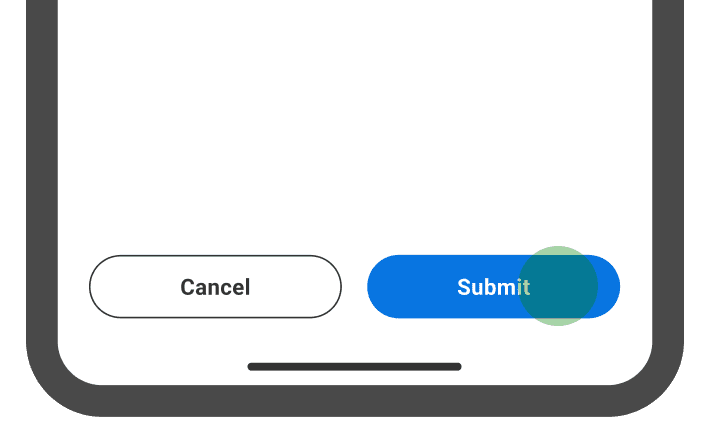
Do
Place Primary Buttons on the right for easy access.
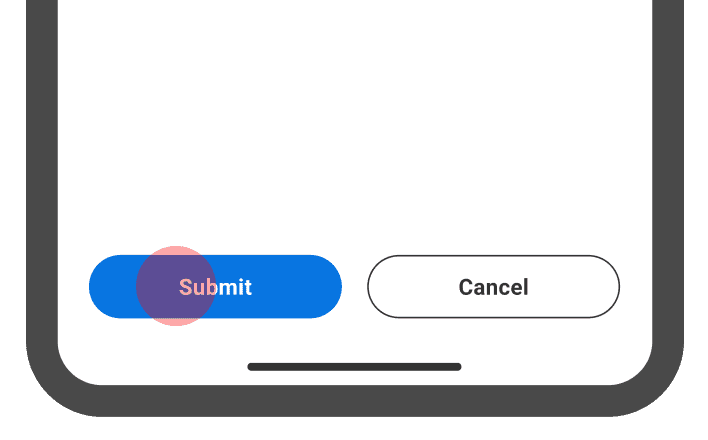
Don't
Align Primary Buttons to the left of Action Bar
Button Resizing
Buttons in Mobile Action Bars stretch to fit the entire screen width, respecting padding and spacing tokens.
Only Show Depth if Content is Scrollable
If there is scrollable content, provide scrolling indication through use of Depth. If there is no scrollable content, no Depth is used on the Action Bar with a plain French Vanilla 100 background.

Do
Show Depth if there is scrollable content.
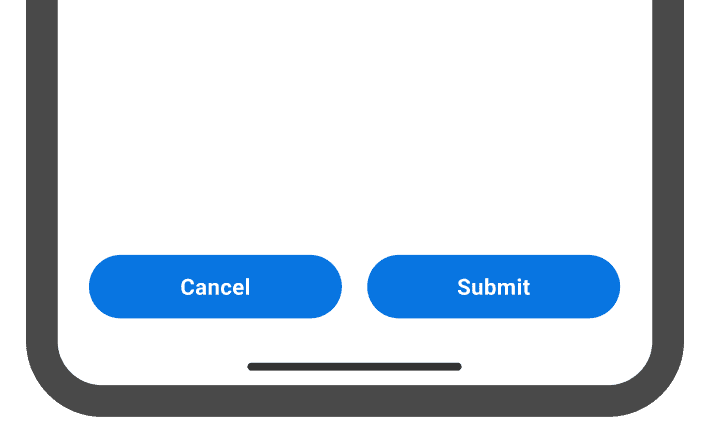
Don't
Apply Depth if there is no scrollable content
Device Considerations
8dp of bottom padding is taken away from the action bar if it’s rendered on a iPhoneX to account for the extra spacing for the home indicator.
Text Overflow
Buttons within Actions Bars should never wrap to multiple lines. Instead, truncate text when Buttons reach screen margins.
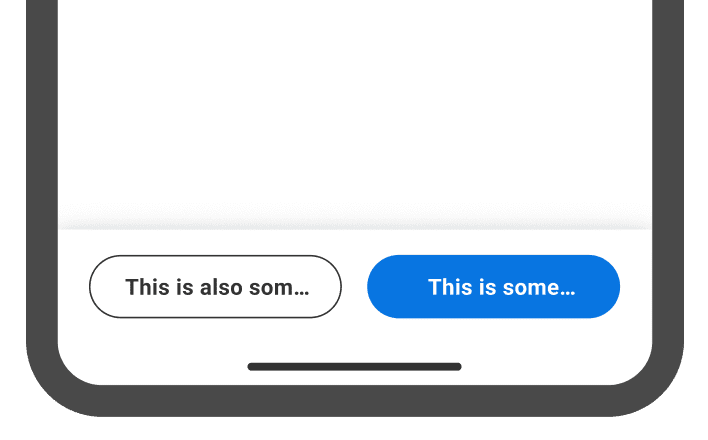
Do
Truncate text when Buttons reach Action Bar margins.
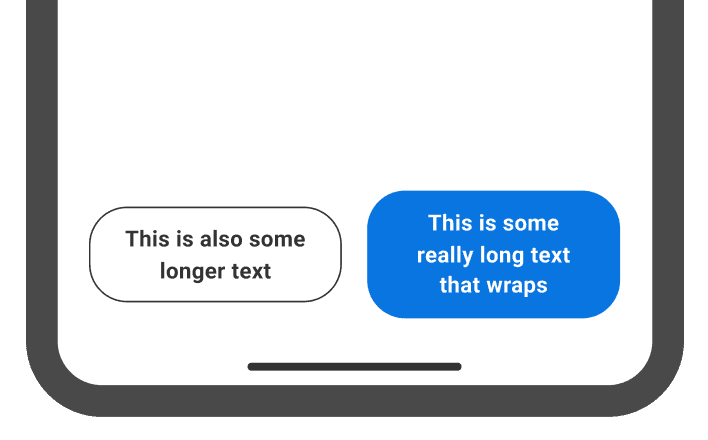
Don't
Have Button text wrap to multiple lines.
API Documentation
Component Definition
actionBarV2(primaryAction:otherActions:style:isContentScrollable:)
Methods
public func actionBarV2(primaryAction: ActionBarItemModel,otherActions: [ActionBarItemModel],style: ActionBarV2.ActionBarStyle = .regular,isContentScrollable: Bool) -> some View
Adds an ActionBar to any content as per Workday design requirements.
Parameters
| Name | Description |
|---|---|
| primaryAction | ActionBarItemModel that represents the Primary Action |
| otherActions | Non-primary ActionBarItemModels that would be displayed as Secondary or Overflow actions based on the ActionBarStyle. |
| style | ActionBarStyle that decides the layout of various actions in the ActionBar. |
| isContentScrollable | Boolean that indicates whether the parent view’s content is scrollable. If yes, ActionBar would have a specific styling with shadow on top. |
Accessibility Guidelines
Refreshed mobile guidelines will be coming soon!
Content Guidelines
- When naming buttons within an Action Bar, refer to the Buttons and Calls to Action section of the Content Style Guide.
Anatomy
- Primary Button: Used as the most important action on a page or task.
- Secondary Button: Actions that are less important than Primary Buttons.
- Overflow Button: A Secondary Icon-Only Button that opens an Overflow Menu.
- Bar Container: Container that groups buttons, anchored to the bottom of the screen.
Variations
Mobile
Mobile action bars can contain up to one Primary Button and one Secondary Button, with additional actions placed in an Overflow Menu.
Overflow
In the case of more than two calls to action in the bar, all overflowing actions should be placed in the Overflow Menu. Tapping on the Overflow Button will open a Menu with those Secondary or Tertiary Actions.
If the text within the Primary Button is too long to fit, the Secondary or Tertiary button(s) should move into the Overflow Menu to allow room for a full-width Primary Button.
Tablet
Action Bars on the tablet may include up to one Primary and two Secondary Buttons.
Overflow
In the case of more than two calls to action in the bar, all overflowing actions should be placed in the Overflow Menu. Tapping on the Overflow Button will open a Menu containing those Secondary or Tertiary Actions.
If the Primary Button length is too long to fit the Secondary Button beside it, the Secondary Button should be placed in the Overflow Menu.
Usage Guidance
- There should only be one Primary Button in the Action Bar. If there are additional actions, use Secondary Buttons. Tertiary Buttons should only appear as actions in the Overflow Menu.
- Action Bars are placed at the bottom of the screen. If there is scrollable content, the Action Bar should remain sticky as the user scrolls.
- Although actions may change, the placement of the Action Bar should persist until the task is successfully submitted.
- Mobile Action Bars can contain up to two visible actions. If there are more than two actions, hide the third and any other actions in an Overflow Menu that is launched by tapping on the Icon Only Secondary Button Variant.
- Tablet Action Bars can contain up to three visible actions. If there are more than three actions, hide the fourth and any other actions in an Overflow Menu that is launched by tapping on the Icon Only Secondary Button Variant.
- Limit the Overflow Menu to a maximum of seven items.
- Group buttons in Action Bars logically, either by usage or ordered by importance.
When to Use
- Use Action Bars for tasks that require navigating between pages, saving progress, submitting a task, or canceling a task.
When to Use Something Else
- Consider taking a Button outside of the Action Bar if the action is not related to the progress or status of a task.
- Consider using a Tertiary Button instead of an Action Bar if an action is less popular or less important.
- If actions are not related to a full screen task, consider using a group of buttons instead.
Mobile Guidance
Button Placement
Mobile Action Bars place Primary Buttons on the right-most side to account for a majority of right handed users.
Do
Place Primary Buttons on the right for easy access.
Don't
Align Primary Buttons to the left of Action Bar
Button Resizing
Buttons in Mobile Action Bars stretch to fit the entire screen width, respecting padding and spacing tokens.
Only Show Depth if Content is Scrollable
If there is scrollable content, provide scrolling indication through use of Depth. If there is no scrollable content, no Depth is used on the Action Bar with a plain French Vanilla 100 background.
Do
Show Depth if there is scrollable content.
Don't
Apply Depth if there is no scrollable content
Device Considerations
8dp of bottom padding is taken away from the action bar if it’s rendered on a iPhoneX to account for the extra spacing for the home indicator.
Text Overflow
Buttons within Actions Bars should never wrap to multiple lines. Instead, truncate text when Buttons reach screen margins.
Do
Truncate text when Buttons reach Action Bar margins.
Don't
Have Button text wrap to multiple lines.
API Documentation
Component Definition
@Composablefun [ActionBarUiComponent](modifier: Modifier = Modifier,numButtonsShown: [Int] = 1,isScrollable: [Boolean](https://kotlinlang.org/api/latest/jvm/stdlib/kotlin/-boolean/index.html) = true,buttonList: [List]<[ActionBarButtonItem]>) {
Parameters
| Name | Description |
|---|---|
| numButtonsShown | Number of individual buttons to be shown Phones will be restricted to 2 buttons and any additional buttons will be pushed into the menu |
| isScrollable | Boolean to let the component know if the screen is scrollable. When the screen is scrollable, the action bar will have a divider above the action bar. |
| buttonList | List of button name, onClickAction pairs Given a list of onClickAction pairs, the first pair on the list will be the primary action button |
Accessibility Guidelines
Refreshed mobile guidelines will be coming soon!
Content Guidelines
- When naming buttons within an Action Bar, refer to the Buttons and Calls to Action section of the Content Style Guide.
Can't Find What You Need?
Check out our FAQ section which may help you find the information you're looking for. For further information, contact the #canvas or #canvas-kitchannels on Slack.
FAQ Section