
Bottom Navigation Bar
The Bottom Navigation Bar enables quick navigation between main app destinations.
Anatomy
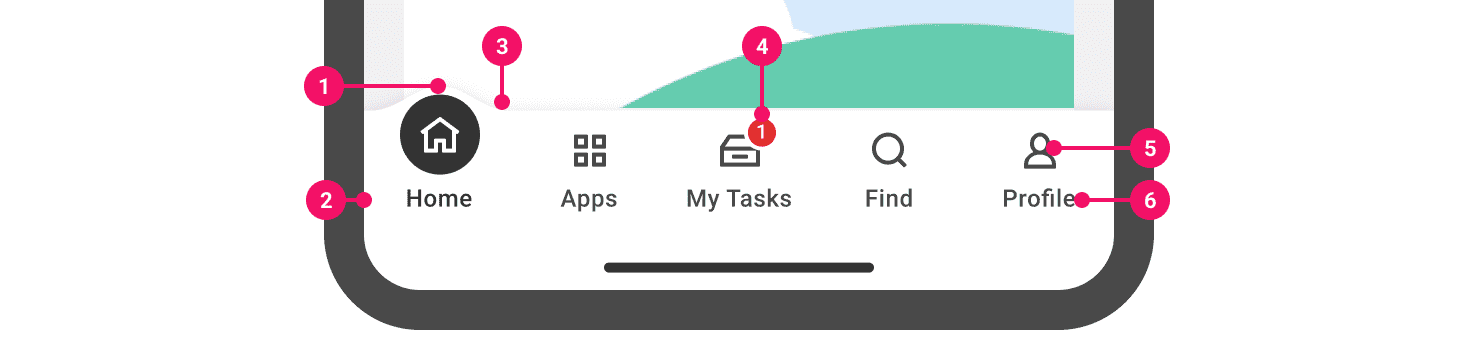
- Bump: Selection indicator.
- Container: Flexible home of icons, labels, and the bump selection indicator. Varies in width depending on screen viewport size.
- Depth: Delineates Bottom Navigation Bar from screen UI.
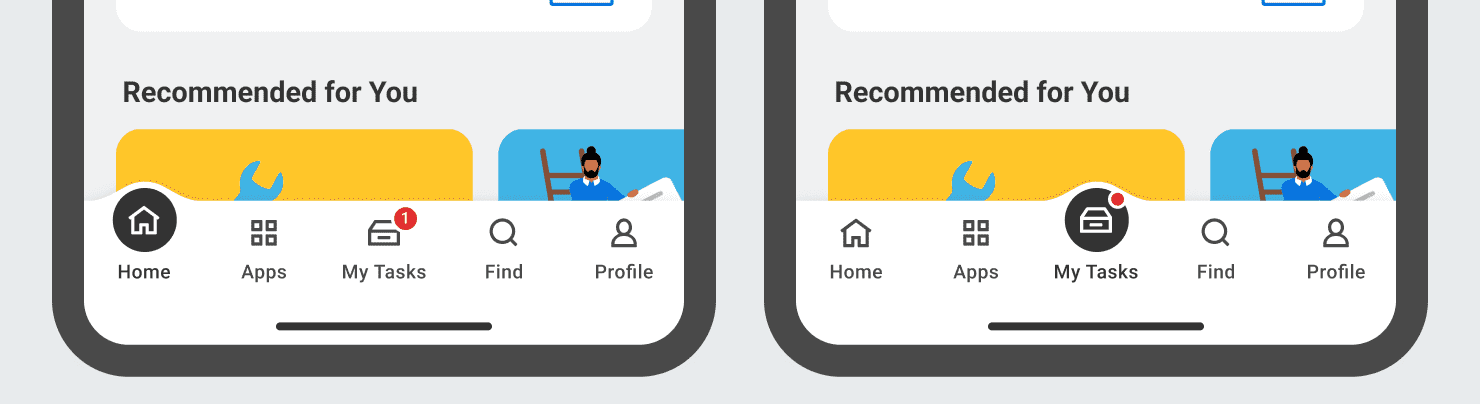
- Badge: Applies only to MyTasks to indicate incomplete tasks. Upon selection of MyTasks, the count badge is replaced with a dot badge.
- Icons: Visual representations of main app destinations.
- Labels: Descriptive names for main app destinations.
Usage Guidance
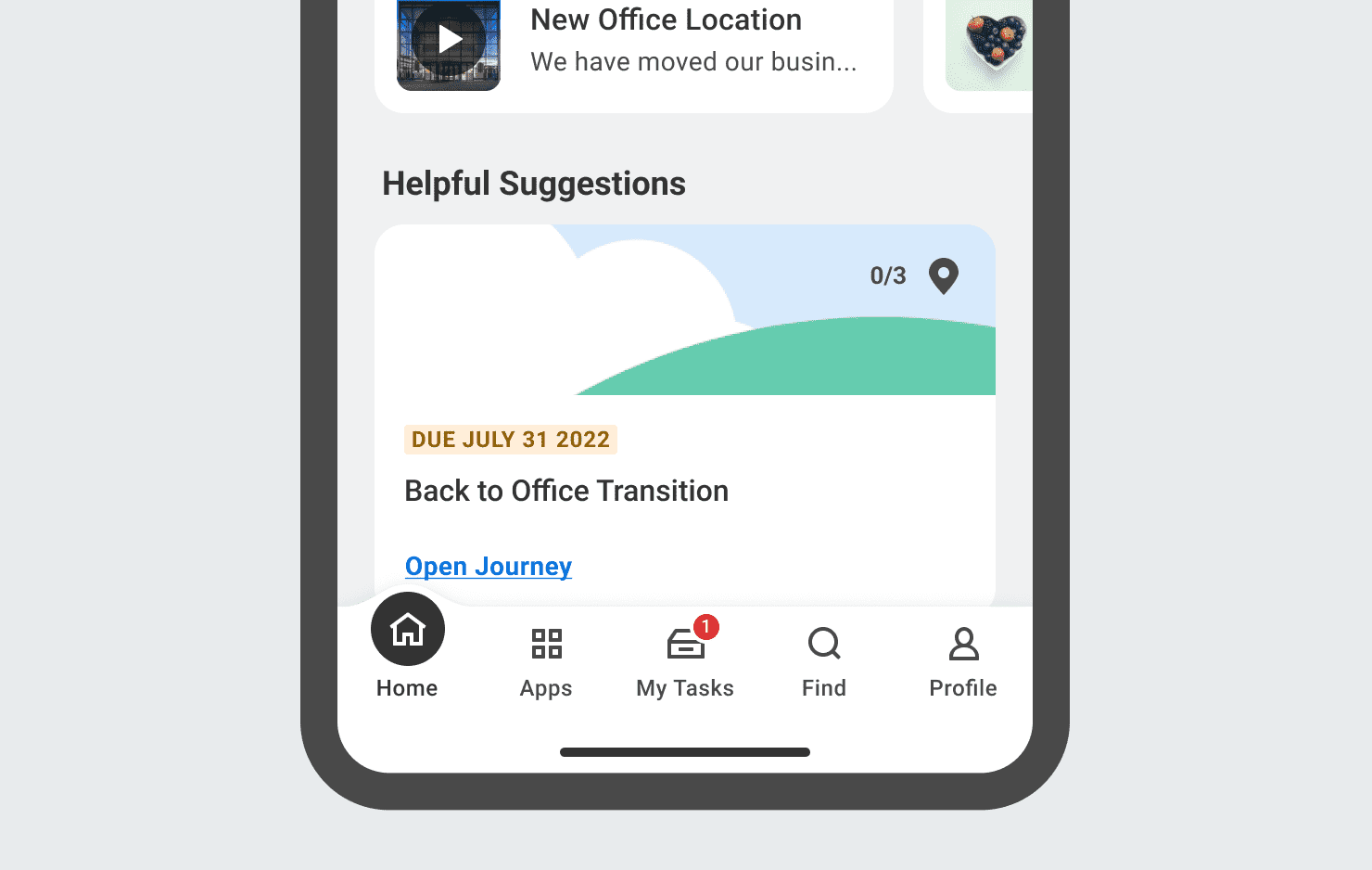
- The bottom navigation bar displays the main app destinations at the bottom of the screen. Each destination consists of an icon and text label and has an associated selection state used to indicate a user’s location within these destinations.
When to Use
- At the bottom of the 5 main app pages: Home, Apps, MyTasks, Find, and Profile.
When to Consider Something Else
- Use the Top App Bar for global navigation in app destinations outside of the main areas. The home icon in the Top App Bar should redirect users to their homepage regardless of their location in the app.
- Consider using Tabs in pages outside of the main areas if alternating between different views of related content.
Behaviors
Destination Selection & Badging
The Bottom Navigation Bar features an animated bump as an indicator of selection. It bounces in and up when navigating to a new destination and fades down after navigation to a different destination.
If notifications are present upon selection of MyTasks, the count badge fades into the dot badge with a bounce.
Sizing
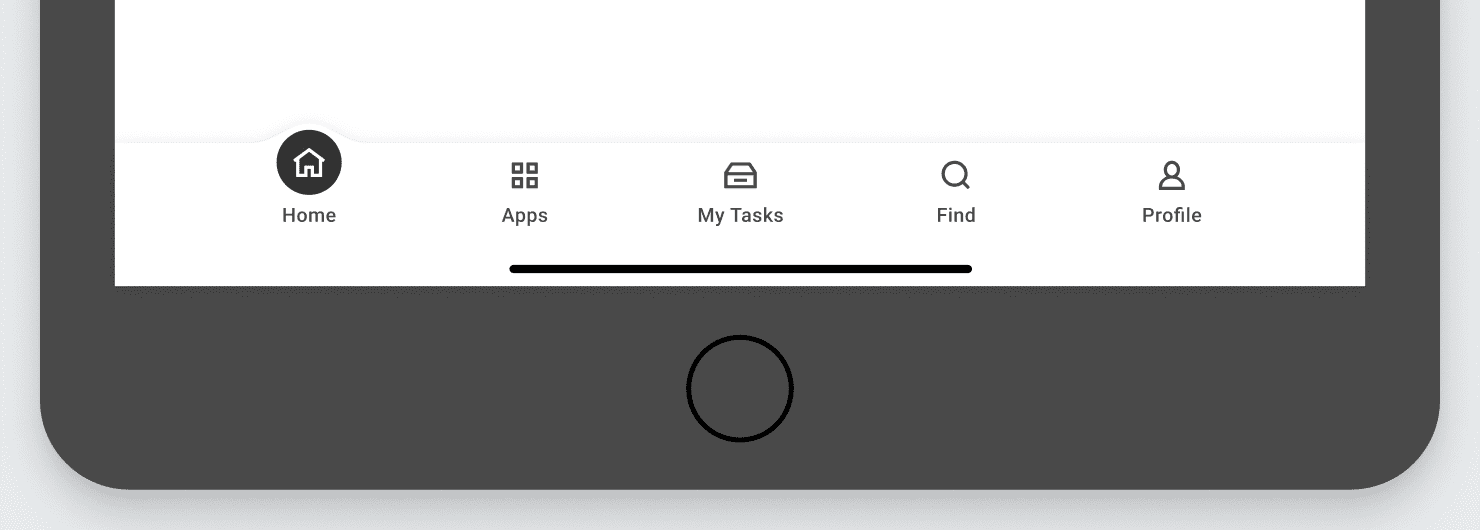
The Bottom Navigation Bar adjusts responsively across different screen sizes. On larger devices like an iPad, the Bar reverts to 80pt margins and evenly distributes the distance between the destination items (i.e., icon and text label).
API Guidelines
Coming soon...
Accessibility Guidelines
Coming soon...
Anatomy
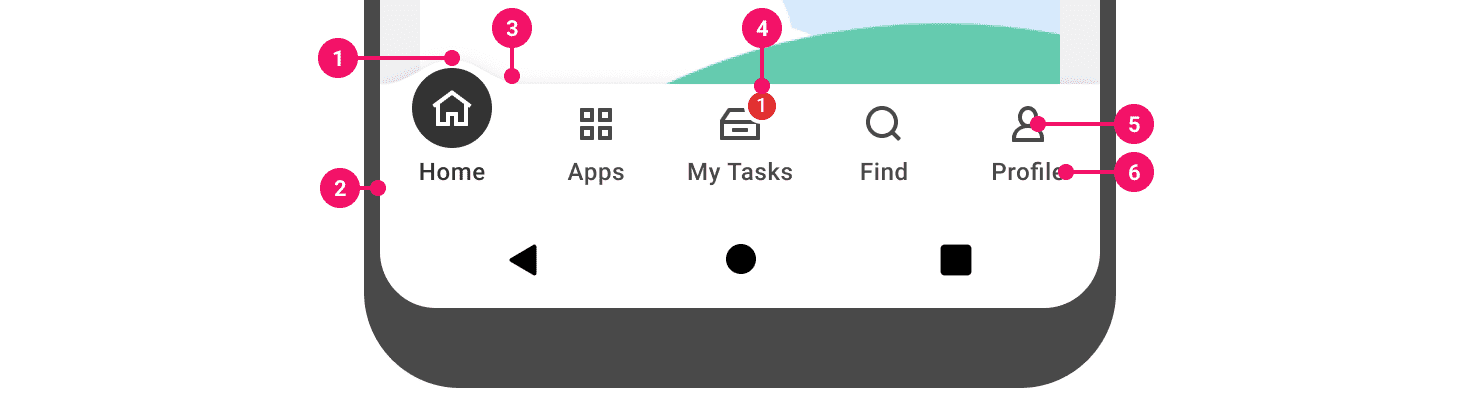
- Bump: Selection indicator.
- Container: Flexible home of icons, labels, and the bump selection indicator. Varies in width depending on screen viewport size.
- Depth: Delineates Bottom Navigation Bar from screen UI.
- Badge: Applies only to MyTasks to indicate incomplete tasks. Upon selection of MyTasks, the count badge is replaced with a dot badge.
- Icons: Visual representations of main app destinations.
- Labels: Descriptive names for main app destinations.
Usage Guidance
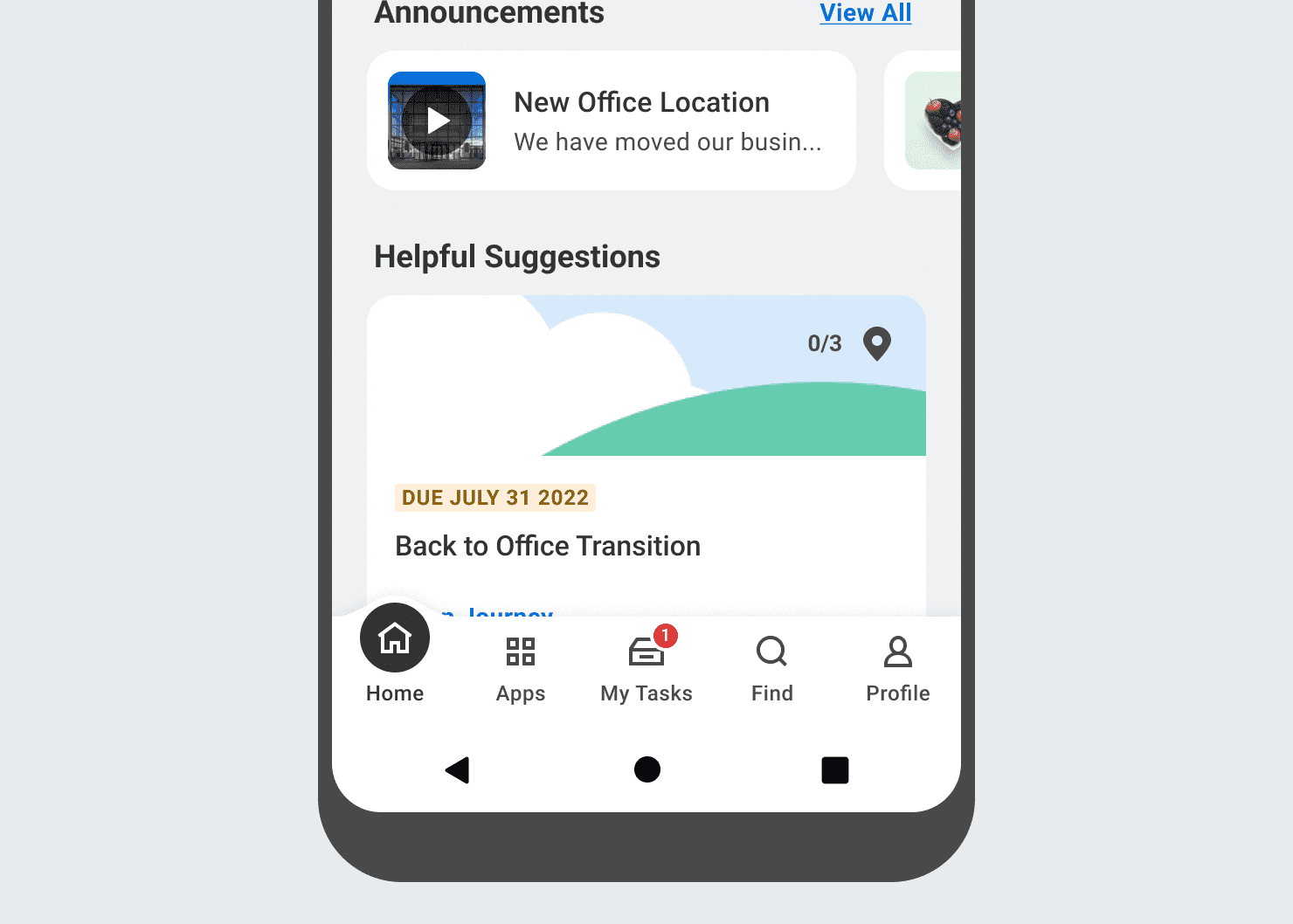
- The bottom navigation bar displays the main app destinations at the bottom of the screen. Each destination consists of an icon and text label and has an associated selection state used to indicate a user’s location within these destinations.
When to Use
- At the bottom of the 5 main app pages: Home, Apps, MyTasks, Find, and Profile.
When to Consider Something Else
- Use the Top App Bar for global navigation in app destinations outside of the main areas. The home icon in the Top App Bar should redirect users to their homepage regardless of their location in the app.
- Consider using Tabs in pages outside of the main areas if alternating between different views of related content.
Behaviors
Destination Selection & Badging
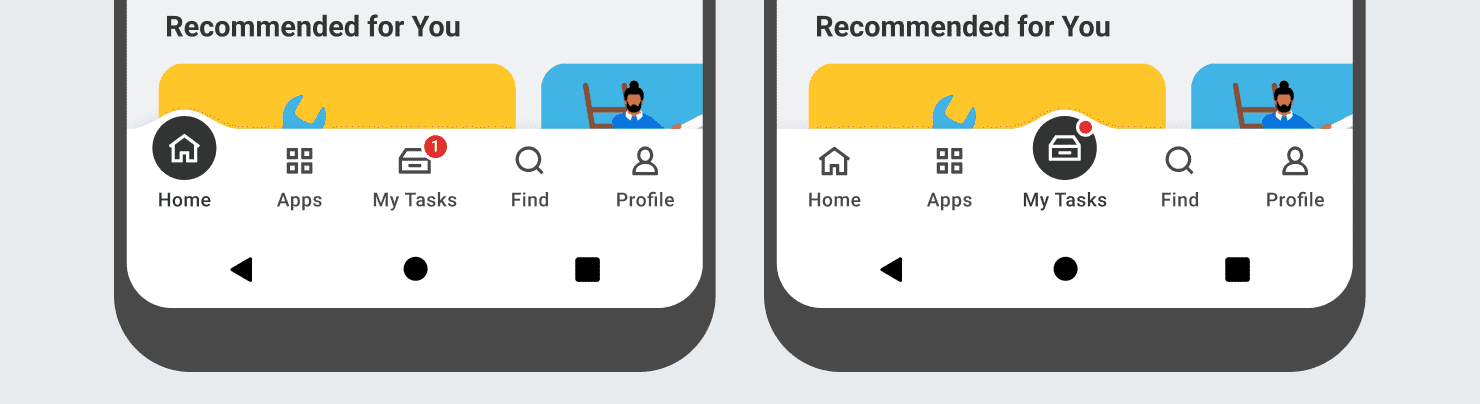
The Bottom Navigation Bar features an animated bump as an indicator of selection. It bounces in and up when navigating to a new destination and fades down after navigation to a different destination.
If notifications are present upon selection of MyTasks, the count badge fades into the dot badge with a bounce.
API Guidelines
Coming soon...
Accessibility Guidelines
Coming soon...
Can't Find What You Need?
Check out our FAQ section which may help you find the information you're looking for. For further information, contact the #canvas or #canvas-kitchannels on Slack.
FAQ Section