
Button
Buttons highlight actions available on a screen.
Anatomy

- Container (Conditional): Houses the contents of the Button. Visual appearance differs based on button type.
- Label (Conditional): Specific text describing the action. Refer to the Buttons and Calls to Action section of the Content Style Guide.
- Icon (Conditional): Supplementary visual indicator that can be positioned alone or added to the left or right of the label. Supplemental icons are used to promote the purpose of the Button.
Usage Guidance
- Buttons should indicate an action.
- They should be discoverable, easy to identify, and specific.
- Make Buttons look and feel clickable.
- Icons can be used alone or added to the left or right of the label. If used, the icon should signify what the Button does.
- Use icon-only variants in dense environments or when space is limited.
- Use accessible tooltips with icon-only variants to help explain ambiguous icons for everyone.
- When deciding which Button to use, consider the level of priority of the action, as well as how much visual emphasis the Button should have in the context of the page it will live on. Be intentional and refer to the examples below to determine which is right for your use case.
When to Use Something Else
- Use Hyperlinks within a paragraph to navigate to another page. See the Button or Hyperlink section of the Buttons and Calls to Action pattern for more information and best practices.
- Consider using checkbox, switch, or segmented control when a component is needed that can capture 2 togglable states.
Examples
PrimaryButton
Primary Buttons are high emphasis. Use once per screen to draw attention to the highest priority action. Multiple primary buttons make it confusing for the user to understand what action they should take. Not all screens require a Primary Button.
Primary Buttons have four sizes: extraSmall, small, medium, and large. Icons are
supported for every size and can be positioned at the start or end with the iconPosition
prop.
The example below shows multiple instances of a PrimaryButton with various icon configurations.
Primary Buttons also have an inverse variant. While it looks similar to the default Secondary
Button, the default outline as well as the hover and focus states are different. Use this variant
when you need to place a Primary Button on a dark or colorful background such as blueberry400.
SecondaryButton
Secondary Buttons have a medium level of emphasis. Use them for non-critical actions. Secondary Buttons can be used on most pages without restrictions and work well for multiple actions of equal weight. They can be used in conjunction with a Primary Button or independently.
Secondary Buttons have four sizes: extraSmall, small, medium, and large. Icons are
supported for every size and can be positioned at the start or end with the iconPosition
prop.
The example below shows multiple instances of a SecondaryButton with various icon configurations.
Secondary Buttons also have an inverse variant. Use this when you need to place a Secondary Button
on a dark or colorful background such as blueberry400.
TertiaryButton
Tertiary Buttons have the lowest emphasis. Use for less important actions that the user may not often be looking to do. Tertiary Buttons have lower prominence as its container is not visible until it is interacted with. Use Tertiary Buttons for supplemental actions such as “View More”, “Read More” or “Select a File”. Tertiary Buttons are frequently used on Cards.
Tertiary Buttons have four sizes: extraSmall, small, medium and large. Icons are
supported for every size and can be positioned at the start or end with the iconPosition
prop.
The example below shows multiple instances of a TertiaryButton with various icon configurations.
Tertiary Buttons also have an inverse variant. Use this when you need to place a Tertiary Button
on a dark or colorful background such as blueberry400.
DeleteButton
Use sparingly for destructive actions that will result in data loss, can’t be undone, or will have significant consequences. They commonly appear in confirmation dialogs as the final confirmation before deleting.
Custom Styles
We understand that there are instances in which consumers might need to adjust styles for specific
use cases. All of our buttons extend our lower level base button props which extends style
properties that come from Box. Below are some examples in which you can overwrite styles for all
of our buttons. Please use this sparingly and try to adhere to the design system.
Accessible Use of the as Prop
Like many of our components, Buttons accept an as prop, which lets you change the underlying
semantic element - usually an <a>, or a <button>. This should be done with caution to ensure the
best accessibility. Generally, <button> elements should be used for actions, and <a> elements
should be used for navigation.
Component API
PrimaryButton
Primary Buttons are high emphasis. Use once per screen to draw attention to the highest priority action. Multiple primary buttons make it confusing for the user to understand what action they should take. Not all screens require a Primary Button.
Primary Buttons have four sizes: extraSmall, small, medium, and large. Icons are
supported for every size and can be positioned at the start or end with the iconPosition
prop.
Layout Component
PrimaryButton supports all props from thelayout component.
Props
Props extend from button. Changing the as prop will change the element interface.
| Name | Type | Description | Default |
|---|---|---|---|
variant | 'inverse' | The variant of the PrimaryButton. | |
size | | There are four button sizes: | 'medium' |
icon | | The icon of the Button.
Note: not displayed at | |
iconPosition | | Button icon positions can either be | 'start' |
shouldMirrorIcon | boolean | If set to | false |
children | ReactNode | ||
theme | | ||
grow | boolean | True if the component should grow to its container's width. False otherwise. | |
fill | | The fill color of the SystemIcon. This overrides | |
color | | The color of the SystemIcon. This defines | |
styles | | ||
shouldMirror | boolean | If set to | false |
background | | The background color of the SystemIcon. | |
accent | | The accent color of the SystemIcon. This overrides | |
accentHover | | The accent color of the SystemIcon on hover. This overrides | |
backgroundHover | | The background color of the SystemIcon on hover. | |
colorHover | | The hover color of the SystemIcon. This defines | |
fillHover | | The fill color of the SystemIcon on hover. This overrides | |
colors | | Override default colors of a button. The default will depend on the button type | |
fillIcon | boolean | Whether the icon should received filled (colored background layer) or regular styles.
Corresponds to | |
as | React.ElementType | Optional override of the default element used by the component. Any valid tag or Component. If you provided a Component, this component should forward the ref using Note: Not all elements make sense and some elements may cause accessibility issues. Change this value with care. | button |
ref | React.Ref<R = button> | Optional ref. If the component represents an element, this ref will be a reference to the real DOM element of the component. If |
SecondaryButton
Secondary Buttons have a medium level of emphasis. Use them for non-critical actions. Secondary Buttons can be used on most pages without restrictions and work well for multiple actions of equal weight. They can be used in conjunction with a Primary Button or independently.
Secondary Buttons have four sizes: extraSmall, small, medium, and large. Icons are
supported for every size and can be positioned at the start or end with the iconPosition
prop.
Layout Component
SecondaryButton supports all props from thelayout component.
Props
Props extend from button. Changing the as prop will change the element interface.
| Name | Type | Description | Default |
|---|---|---|---|
variant | 'inverse' | undefined | The variant of the SecondaryButton. | |
size | | There are four button sizes: | 'medium' |
icon | | The icon of the Button.
Note: not displayed at | |
iconPosition | | Button icon positions can either be | 'start' |
shouldMirrorIcon | boolean | If set to | false |
children | ReactNode | ||
theme | | ||
grow | boolean | True if the component should grow to its container's width. False otherwise. | |
fill | | The fill color of the SystemIcon. This overrides | |
color | | The color of the SystemIcon. This defines | |
styles | | ||
shouldMirror | boolean | If set to | false |
background | | The background color of the SystemIcon. | |
accent | | The accent color of the SystemIcon. This overrides | |
accentHover | | The accent color of the SystemIcon on hover. This overrides | |
backgroundHover | | The background color of the SystemIcon on hover. | |
colorHover | | The hover color of the SystemIcon. This defines | |
fillHover | | The fill color of the SystemIcon on hover. This overrides | |
colors | | Override default colors of a button. The default will depend on the button type | |
fillIcon | boolean | Whether the icon should received filled (colored background layer) or regular styles.
Corresponds to | |
as | React.ElementType | Optional override of the default element used by the component. Any valid tag or Component. If you provided a Component, this component should forward the ref using Note: Not all elements make sense and some elements may cause accessibility issues. Change this value with care. | button |
ref | React.Ref<R = button> | Optional ref. If the component represents an element, this ref will be a reference to the real DOM element of the component. If |
TertiaryButton
Tertiary Buttons have the lowest emphasis. Use for less important actions that the user may not often be looking to do. Tertiary Buttons have lower prominence as its container is not visible until it is interacted with. Use Tertiary Buttons for supplemental actions such as “View More”, “Read More” or “Select a File”. Tertiary Buttons are frequently used on Cards.
Tertiary Buttons have four sizes: extraSmall, small, medium and large. Icons are
supported for every size and can be positioned at the start or end with the iconPosition
prop.
Layout Component
TertiaryButton supports all props from thelayout component.
Props
Props extend from button. Changing the as prop will change the element interface.
| Name | Type | Description | Default |
|---|---|---|---|
variant | 'inverse' | undefined | The variant of the TertiaryButton. | |
size | | There are four button sizes: | 'medium' |
iconPosition | | Button icon positions can either be | 'start' |
icon | | The icon of the TertiaryButton. | |
shouldMirrorIcon | boolean | If set to | false |
allCaps | boolean | If set to | |
children | ReactNode | ||
isThemeable | boolean | If set to | false |
theme | | ||
fill | | The fill color of the SystemIcon. This overrides | |
color | | The color of the SystemIcon. This defines | |
styles | | ||
shouldMirror | boolean | If set to | false |
background | | The background color of the SystemIcon. | |
accent | | The accent color of the SystemIcon. This overrides | |
accentHover | | The accent color of the SystemIcon on hover. This overrides | |
backgroundHover | | The background color of the SystemIcon on hover. | |
colorHover | | The hover color of the SystemIcon. This defines | |
fillHover | | The fill color of the SystemIcon on hover. This overrides | |
colors | | Override default colors of a button. The default will depend on the button type | |
fillIcon | boolean | Whether the icon should received filled (colored background layer) or regular styles.
Corresponds to | |
grow | boolean | True if the component should grow to its container's width. False otherwise. | |
as | React.ElementType | Optional override of the default element used by the component. Any valid tag or Component. If you provided a Component, this component should forward the ref using Note: Not all elements make sense and some elements may cause accessibility issues. Change this value with care. | button |
ref | React.Ref<R = button> | Optional ref. If the component represents an element, this ref will be a reference to the real DOM element of the component. If |
DeleteButton
Use sparingly for destructive actions that will result in data loss, can’t be undone, or will have significant consequences. They commonly appear in confirmation dialogs as the final confirmation before deleting.
Layout Component
DeleteButton supports all props from thelayout component.
Props
Props extend from button. Changing the as prop will change the element interface.
| Name | Type | Description | Default |
|---|---|---|---|
size | 'small' | 'medium' | 'large' | The size of the Button. | 'medium' |
children | ReactNode | ||
theme | | ||
grow | boolean | True if the component should grow to its container's width. False otherwise. | |
fill | | The fill color of the SystemIcon. This overrides | |
color | | The color of the SystemIcon. This defines | |
styles | | ||
shouldMirror | boolean | If set to | false |
background | | The background color of the SystemIcon. | |
icon | | The icon to display from | |
accent | | The accent color of the SystemIcon. This overrides | |
accentHover | | The accent color of the SystemIcon on hover. This overrides | |
backgroundHover | | The background color of the SystemIcon on hover. | |
colorHover | | The hover color of the SystemIcon. This defines | |
fillHover | | The fill color of the SystemIcon on hover. This overrides | |
colors | | Override default colors of a button. The default will depend on the button type | |
fillIcon | boolean | Whether the icon should received filled (colored background layer) or regular styles.
Corresponds to | |
as | React.ElementType | Optional override of the default element used by the component. Any valid tag or Component. If you provided a Component, this component should forward the ref using Note: Not all elements make sense and some elements may cause accessibility issues. Change this value with care. | button |
ref | React.Ref<R = button> | Optional ref. If the component represents an element, this ref will be a reference to the real DOM element of the component. If |
Specifications
| Given | When | Then |
|---|---|---|
| given primary buttons are rendered |
| |
| given primary buttons are rendered |
| |
| given delete buttons are rendered |
| |
| given delete buttons are rendered |
|
Accessibility Guidelines
How Buttons Impact the Accessible Experience
When buttons are disabled on the UI, color contrast guidelines do not apply to disabled components. Minimum contrast guidelines set in WCAG 2.1 explicitly state disabled components are exempt from the guideline.
When identical buttons are used repeatedly on a screen, users must correctly identify the context around the buttons that cannot be distinguished from one another.
- For example: Pencil icon buttons used repeatedly on a profile screen, each designed to edit a section of the profile. Providing uniquely descriptive names (e.g. “Edit photo”, “Edit contact info”) for each icon button can be valuable for screen reader users.
When icons are used inside of buttons containing text, a text alternative is only necessary when the icon is communicating something about the button.
- For example: A ‘+’ icon used in a skill pill named “communication” signals an action that is not expressed in the text.
- On the other hand: An icon of an eye used to decorate a “View Details” button is redundant and should be hidden from screen readers.
Keyboard Interaction
Each Button should have a focus indicator that is highly visible against the background and against the non-focused state. Refer to Accessible Colors for more information.
Buttons should support the following keyboard interactions:
Tab: Focus on a buttonEnterorSpace: Activate the button
Screen Reader Interaction
Buttons should communicate the following to users:
- The intended purpose, or function, of the Button
- If applicable, the toggle state of the Button when it has 2 states
- If applicable, an instruction that the Button will open a menu
Design Annotations Needed
- Write accessible name for icon-only button variants. Read more about non-text content.
Implementation Markup Needed
- An
aria-labelstring is required for icon-only buttons and accessible tooltips can show the icon's name for everyone. - If the button has 2 toggle states, an
aria-pressedattribute is required. - If the button has an attached menu, an
aria-haspopup=”true”attribute is required. - [Included in component] Decorative
<svg>icons are hidden from assistive technology withrole=”presentation”andfocusable=”false”.
Content Guidelines
- See the Buttons and Calls to Action page in the UI Text section of the Content Style Guide for button language guidelines.
- When writing Tooltips to pair with icon-only variants, refer to the Tooltips section of the Content Style Guide.
Anatomy

- Container (Conditional): Houses the contents of the Button. Visual appearance differs based on button type.
- Label: Specific text describing the action. Refer to the Buttons and Calls to Action section of the Content Style Guide.
- Icon (Optional): Supplementary visual indicator positioned to the left or right of the label used to promote the purpose of the Button.
Interaction States
Mobile Buttons have the Default/Inactive, Pressed, and Disabled interaction states.

Usage Guidance
- Buttons should indicate an action.
- They should be discoverable, easy to identify, and specific.
- Make Buttons look and feel tappable.
- Adding an icon to the left or right of the label is optional. If used, the icon should signify what the Button does.
- When deciding which Button to use, consider the level of priority of the action, as well as how much visual emphasis the Button should have in the context of the page it will live on. Be intentional and refer to the examples below to determine which button type is right for your use case.
When to Use Something Else
- Use Hyperlinks within a paragraph to navigate to another page. See the Button or Hyperlink section of the Buttons and Calls to Action pattern for more information and best practices.
Mobile Guidance
- Large Buttons on Mobile have larger typography to increase readability on smaller screens
- Mobile Buttons have reduced horizontal padding to decrease the likelihood of truncated text.
- XS Buttons are not supported on Mobile.
Tap Targets
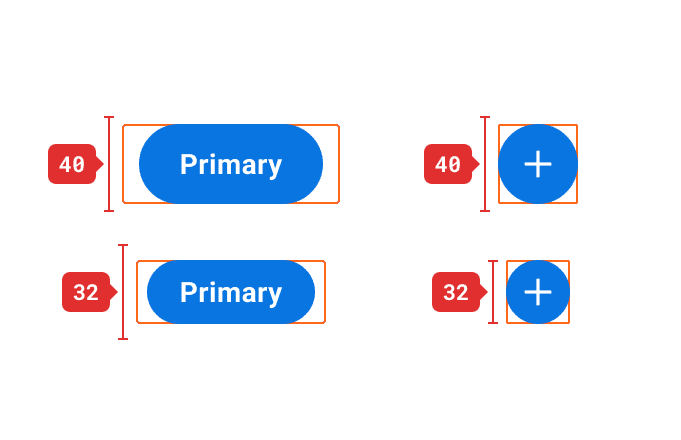
Mobile Buttons have a minimum tap target height of 48dp to ensure that they are easy to interact with. The entire area of the Button should be tappable. On Medium and Small Size Buttons, an additional tappable top and bottom padding are added to meet this 48dp tappable height requirement. Make sure spacing between Buttons and other UI elements is enough to avoid intersecting tap targets.

Do
Use a minimum tap target of 48dp to ensure the Button is easy to interact with.
Don't
Use a tap target height smaller than 48dp, even if the Button might appear smaller visually.
Icon Placement
Icons can be used within Buttons to help reinforce the meaning of their labels, or to hint as to what tapping on the Button will accomplish.
- No Icon: Used when no icons are needed to reinforce the meaning of the Button or describe interactivity.
- Leading Icon: Icons placed in front of a label are used to reinforce the meaning of the Button label and are purely descriptive. For example, adding a plus icon will reinforce the actions of an "Add" button.
- Trailing Icon: Icons placed to the right of a label are used to hint the interaction to follow after tapping on the Button. For example, a Button with a "Caret Down" icon might open a menu with more options.
- Icon Only: Used for dense environments, or when space is limited on the screen.
Truncation
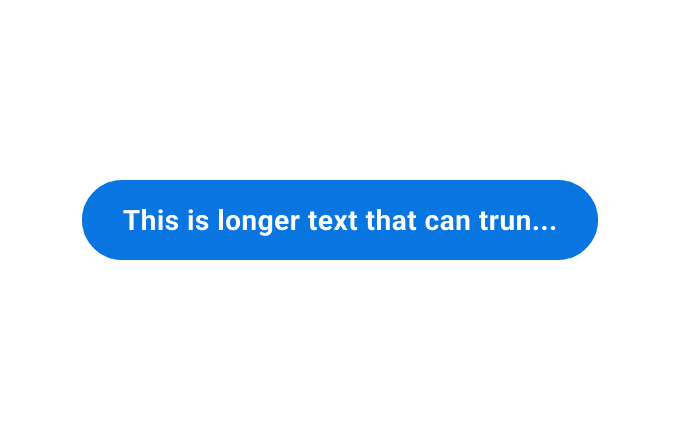
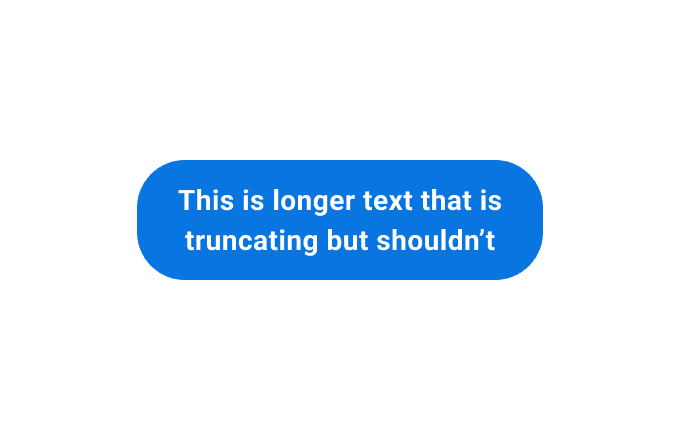
Button labels should be kept short and concise. Each Button should represent a single action the user can take, never multiple. However, do be mindful if a single action triggers multiple system processes (e.g. “Squash and Merge” closes a branch and moves it to another one in many coding environments).
Do
Try to keep label text concise. If needed, labels can be truncated to avoid wrapping.
Don't
Wrap Button text to the next line, with the exception of dynamic type scaling.
Variations
Primary Button
Primary Buttons are high emphasis. Use minimally to draw attention to the highest priority action. Too many primary buttons make it confusing for the user to understand what action they should take. Not all screens require a Primary Button.
Primary Buttons have three sizes: small, medium, and large. Icons are supported for every size and can be positioned to the left or right.

Primary Buttons also have an inverse variant. While it looks similar to the default Secondary Button, the default outline as well as the hover and focus states are different. Use this variant when you need to place a Primary Button on a dark or colorful background such as blueberry400.

Primary Buttons and their inverse variants support the Inactive, Pressed, and Disabled Interaction States.

Secondary Button
Secondary Buttons have a medium level of emphasis. Use them for non-critical actions. Secondary Buttons can be used on most pages without restrictions and work well for multiple actions of equal weight. They can be used in conjunction with a Primary Button or independently.
Secondary Buttons have three sizes: small, medium, and large. Icons are supported for every size and can be positioned to the left or right.

Secondary Buttons also have an inverse variant. Use this when you need to place a Secondary Button on a dark or colorful background such as blueberry400.

Secondary Buttons and their inverse variants support the Inactive, Pressed, and Disabled Interaction States.

Tertiary Button
Tertiary Buttons have the lowest emphasis. Use for less important actions that the user may not often be looking to do. Tertiary Buttons have lower prominence as its container is not visible until it is interacted with. Use Tertiary Buttons for supplemental actions such as “View More”, “Read More” or “Select a File”. Tertiary Buttons are frequently used on List Items.
Tertiary Buttons have two sizes on mobile: small, and medium. Icons are supported for every size and can be positioned to the left or right with the iconPosition prop.

Tertiary Buttons also have an inverse variant. Use this when you need to place a Tertiary Button on a dark or colorful background such as blueberry400.

Tertiary Buttons and their inverse variants support the Inactive, Pressed, and Disabled Interaction States.

API Documentation
Primary Button
PrimaryButtonStyle
public struct PrimaryButtonStyle: BasePrimitiveButtonStyle
CanvasKit design system primary button style.
Methods
init(context:size:isIconOnly:iconName:iconAlignment:iconAccessibilityLabel:)
public init(context: Binding<SemanticContext>,size: ButtonSize,isIconOnly: Bool,iconName: String?,iconAlignment: HorizontalAlignment,iconAccessibilityLabel: String)
Parameters
| Name | Description |
|---|---|
| context | the SemanticContext in which the button appears. |
| size | the size class of the button. |
| isIconOnly | whether the button is just an icon. |
| iconName | Optionl name of the icon, i.e if empty string or nil, label-only button. |
| iconAlignment | the alignment of the icon within the button oval. |
| iconAccessibilityLabel | the accessibility label for the icon. (Use an empty string unless isIconOnly is true.) |
makeBody(configuration:)
public func makeBody(configuration: Configuration) -> some View
Parameters
| Name | Description |
|---|---|
| configuration | The properties of the button. |
Secondary Button
SecondaryButtonStyle
public struct SecondaryButtonStyle: BasePrimitiveButtonStyle
CanvasKit design system secondary button style.
Methods
init(context:size:isIconOnly:iconName:iconAlignment:iconAccessibilityLabel:)
public init(context: Binding<SemanticContext>,size: ButtonSize,isIconOnly: Bool,iconName: String?,iconAlignment: HorizontalAlignment,iconAccessibilityLabel: String)
Parameters
| Name | Description |
|---|---|
| context | the SemanticContext in which the button appears. |
| size | the size class of the button. |
| isIconOnly | whether the button is just an icon. |
| iconName | Optionl name of the icon, i.e if empty string or nil, label-only button. |
| iconAlignment | the alignment of the icon within the button oval. |
| iconAccessibilityLabel | the accessibility label for the icon. (Use an empty string unless isIconOnly is true.) |
makeBody(configuration:)
public func makeBody(configuration: Configuration) -> some View
Parameters
| Name | Description |
|---|---|
| configuration | The properties of the button. |
Tertiary Button
TertiaryButtonStyle
public struct TertiaryButtonStyle: BasePrimitiveButtonStyle
CanvasKit design system tertiary button style.
Methods
init(context:size:isIconOnly:iconName:iconAlignment:iconAccessibilityLabel:)
public init(context: Binding<SemanticContext>,size: ButtonSize,isIconOnly: Bool,iconName: String?,iconAlignment: HorizontalAlignment,iconAccessibilityLabel: String)
Parameters
| Name | Description |
|---|---|
| context | the SemanticContext in which the button appears. |
| size | the size class of the button. |
| isIconOnly | whether the button is just an icon. |
| iconName | Optionl name of the icon, i.e if empty string or nil, label-only button. |
| iconAlignment | the alignment of the icon within the button oval. |
| iconAccessibilityLabel | the accessibility label for the icon. (Use an empty string unless isIconOnly is true.) |
makeBody(configuration:)
public func makeBody(configuration: Configuration) -> some View
Parameters
| Name | Description |
|---|---|
| configuration | The properties of the button. |
Accessibility Guidelines
Refreshed mobile guidelines will be coming soon!
Content Guidelines
- See the Buttons and Calls to Action page in the UI Text section of the Content Style Guide for button language guidelines.
- When writing Tooltips to pair with Icon Buttons, refer to the Tooltips section of the Content Style Guide.
Anatomy
- Container (Conditional): Houses the contents of the Button. Visual appearance differs based on button type.
- Label: Specific text describing the action. Refer to the Buttons and Calls to Action section of the Content Style Guide.
- Icon (Optional): Supplementary visual indicator positioned to the left or right of the label used to promote the purpose of the Button.
Interaction States
Mobile Buttons have the Default/Inactive, Pressed, and Disabled interaction states.
Usage Guidance
- Buttons should indicate an action.
- They should be discoverable, easy to identify, and specific.
- Make Buttons look and feel tappable.
- Adding an icon to the left or right of the label is optional. If used, the icon should signify what the Button does.
- When deciding which Button to use, consider the level of priority of the action, as well as how much visual emphasis the Button should have in the context of the page it will live on. Be intentional and refer to the examples below to determine which button type is right for your use case.
When to Use Something Else
- Use Hyperlinks within a paragraph to navigate to another page. See the Button or Hyperlink section of the Buttons and Calls to Action pattern for more information and best practices.
Mobile Guidance
- Large Buttons on Mobile have larger typography to increase readability on smaller screens
- Mobile Buttons have reduced horizontal padding to decrease the likelihood of truncated text.
- XS Buttons are not supported on Mobile.
Tap Targets
Mobile Buttons have a minimum tap target height of 48dp to ensure that they are easy to interact with. The entire area of the Button should be tappable. On Medium and Small Size Buttons, an additional tappable top and bottom padding are added to meet this 48dp tappable height requirement. Make sure spacing between Buttons and other UI elements is enough to avoid intersecting tap targets.
Do
Use a minimum tap target of 48dp to ensure the Button is easy to interact with.
Don't
Use a tap target height smaller than 48dp, even if the Button might appear smaller visually.
Icon Placement
Icons can be used within Buttons to help reinforce the meaning of their labels, or to hint as to what tapping on the Button will accomplish.
- No Icon: Used when no icons are needed to reinforce the meaning of the Button or describe interactivity.
- Leading Icon: Icons placed in front of a label are used to reinforce the meaning of the Button label and are purely descriptive. For example, adding a plus icon will reinforce the actions of an "Add" button.
- Trailing Icon: Icons placed to the right of a label are used to hint the interaction to follow after tapping on the Button. For example, a Button with a "Caret Down" icon might open a menu with more options.
- Icon Only: Used for dense environments, or when space is limited on the screen.
Truncation
Button labels should be kept short and concise. Each Button should represent a single action the user can take, never multiple. However, do be mindful if a single action triggers multiple system processes (e.g. “Squash and Merge” closes a branch and moves it to another one in many coding environments).
Do
Try to keep label text concise. If needed, labels can be truncated to avoid wrapping.
Don't
Wrap Button text to the next line, with the exception of dynamic type scaling.
Variations
Primary Button
Primary Buttons are high emphasis. Use minimally to draw attention to the highest priority action. Too many primary buttons make it confusing for the user to understand what action they should take. Not all screens require a Primary Button.
Primary Buttons have three sizes: small, medium, and large. Icons are supported for every size and can be positioned to the left or right.
Primary Buttons also have an inverse variant. While it looks similar to the default Secondary Button, the default outline as well as the hover and focus states are different. Use this variant when you need to place a Primary Button on a dark or colorful background such as blueberry400.
Primary Buttons and their inverse variants support the Inactive, Pressed, and Disabled Interaction States.
Secondary Button
Secondary Buttons have a medium level of emphasis. Use them for non-critical actions. Secondary Buttons can be used on most pages without restrictions and work well for multiple actions of equal weight. They can be used in conjunction with a Primary Button or independently.
Secondary Buttons have three sizes: small, medium, and large. Icons are supported for every size and can be positioned to the left or right.
Secondary Buttons also have an inverse variant. Use this when you need to place a Secondary Button on a dark or colorful background such as blueberry400.
Secondary Buttons and their inverse variants support the Inactive, Pressed, and Disabled Interaction States.
Tertiary Button
Tertiary Buttons have the lowest emphasis. Use for less important actions that the user may not often be looking to do. Tertiary Buttons have lower prominence as its container is not visible until it is interacted with. Use Tertiary Buttons for supplemental actions such as “View More”, “Read More” or “Select a File”. Tertiary Buttons are frequently used on List Items.
Tertiary Buttons have two sizes on mobile: small, and medium. Icons are supported for every size and can be positioned to the left or right with the iconPosition prop.
Tertiary Buttons also have an inverse variant. Use this when you need to place a Tertiary Button on a dark or colorful background such as blueberry400.
Tertiary Buttons and their inverse variants support the Inactive, Pressed, and Disabled Interaction States.
API Documentation
Component Definition
@Composablefun ButtonUiComponent(modifier: Modifier = Modifier,enabled: Boolean = true,size: ButtonSizeConfig = ButtonSizeConfig.Large,iconConfig: ButtonIconConfig = ButtonIconConfig.NoIcon,buttonStyle: ButtonStyles = primaryButtonStyle(),iconPainter: Painter? = null,contentPadding: PaddingValues = buttonPaddingValues(size, iconConfig),contentDescription: String = "",onClick: () -> Unit = {},content: @Composable RowScope.() -> Unit,) {
Parameters
All undocumented parameters are native Android Compose types that can be found in the developer documentation.
| Name | Type | Default | Description |
|---|---|---|---|
| enabled | Boolean | true | Controls the enabled state of the button. When false, this button will not be clickable. |
| size | ButtonSizeConfig | ButtonSizeConfig.Large | Determines the size of the button using a ButtonSizeConfig enum. |
| iconConfig | ButtonIconConfig | ButtonIconConfig.NoIcon | Determines the position of a provided icon using a ButtonIconConfig. |
| buttonStyle | ButtonStyles | primaryButtonStyle() | Sets colors, border, and content padding based on defined primary, secondary, and tertiary button styles. Custom buttons can be made by using one of the default button styles with the .copy() function. |
| iconPainter | Painter? | null | The icon painter to be used in the button. |
| contentPadding | PaddingValues | largeNoIconPadding | The spacing values to apply internally between the container and the content. |
| contentDescription | String | "" | Content Description for the icon. |
| onClick | () -> Unit | {} | Callback lambda that is executed when the user clicks on the button. |
Accessibility Guidelines
Refreshed mobile guidelines will be coming soon!
Content Guidelines
- See the Buttons and Calls to Action page in the UI Text section of the Content Style Guide for button language guidelines.
- When writing Tooltips to pair with Icon Buttons, refer to the Tooltips section of the Content Style Guide.
Can't Find What You Need?
Check out our FAQ section which may help you find the information you're looking for. For further information, contact the #canvas or #canvas-kitchannels on Slack.
FAQ Section